
Free vocal remover & instrumental maker
Separate a song into vocals and an instrumental, then save either track. OFFON AI works in your browser with no installation.
How to remove vocals from MP3
Upload audio
Choose Select file on the home screen or drag and drop your audio. MP3, WAV, M4A and FLAC are supported, up to 50 MB and 10 minutes per file.
Listen to music and vocals
Once AI separation finishes, the music and vocal tracks appear. Mute Vocals to hear the instrumental, or mute Music to hear the voice.
Save the track you want
Choose a download format. Music saves the instrumental; Vocals saves the isolated voice.
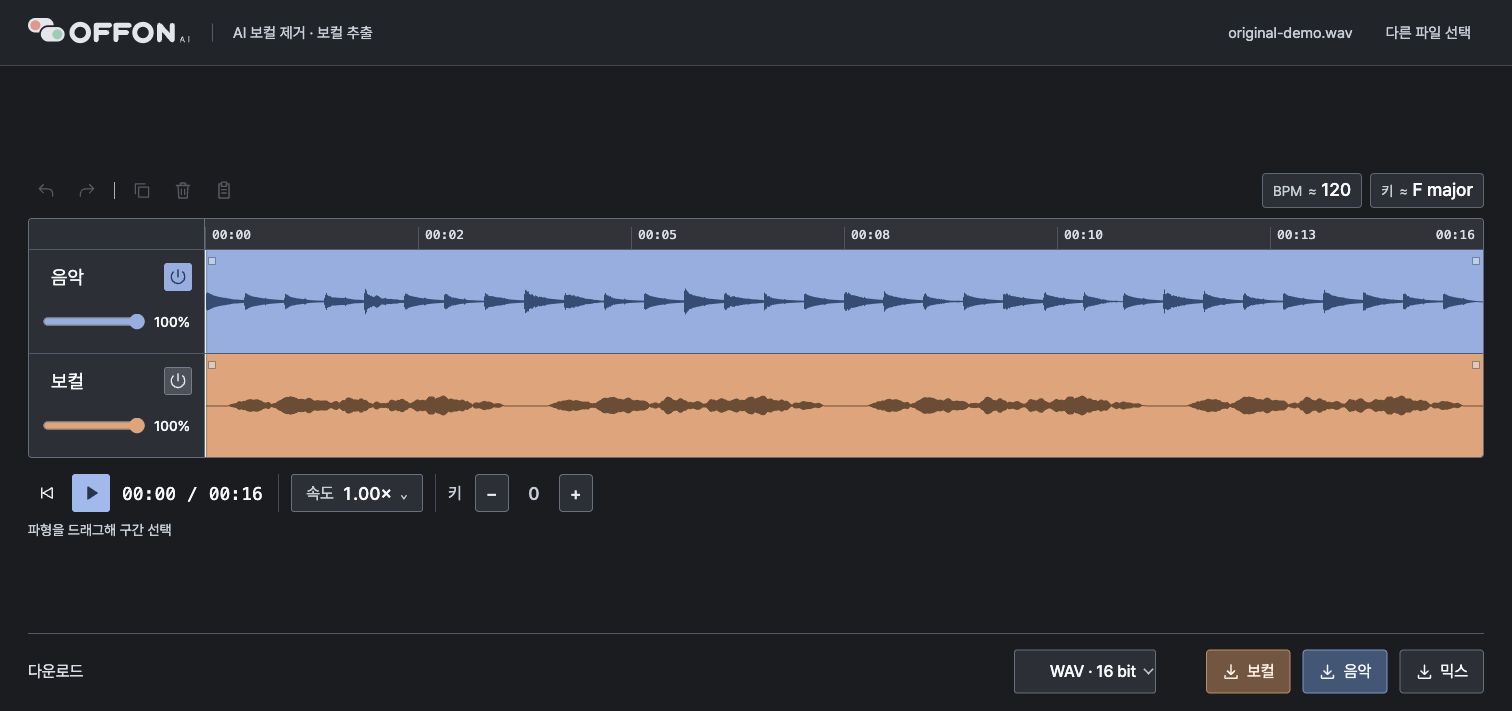
The blue track is music and the orange track is vocals. Mute tracks or change their volume to compare them.
What can I do for free?
Separate 2 songs and 10 minutes total per day. The allowance resets at midnight in Korea (UTC+9).
Listening, editing and downloading separated audio are also free. Editing or downloading completed audio doesn't use additional allowance.
Need more songs? Compare Free and Pro plans.
Create an instrumental by removing vocals
The Music track is the instrumental. Mute Vocals to preview it, then download Music for singing practice or a cover.
Choose Vocals for the isolated voice, or Mix to combine enabled tracks at your chosen volumes. Downloads support MP3, WAV and FLAC.
Adjust your backing track for practice
Lower the tempo (BPM) for difficult sections, or change pitch to suit your vocal range. Both are available for free. Download again to save your adjustments.
Frequently asked questions
Does this only work with MP3?
No. You can upload MP3, WAV, M4A or FLAC and save the results as MP3, WAV or FLAC.
Why can I still hear some vocals?
Results depend on the source quality and arrangement. Reverb, backing vocals and voices overlapping with instruments may remain. Preview the results before saving.
Can I use my phone?
Yes. Upload, separate and download in a desktop or mobile web browser without installing an app.