
Free AI vocal remover & instrumental maker
Use the online AI vocal remover to separate a song into vocals and an instrumental, then save either track. Adjust tempo and key, and download your audio in one browser-based editor.
How to remove vocals from MP3 and make a backing track
- Upload your audio
Choose Select file on the home screen or drag and drop a file. MP3, WAV, M4A and FLAC are supported, up to 50 MB and 10 minutes per file.
- Mute Vocals and preview the instrumental
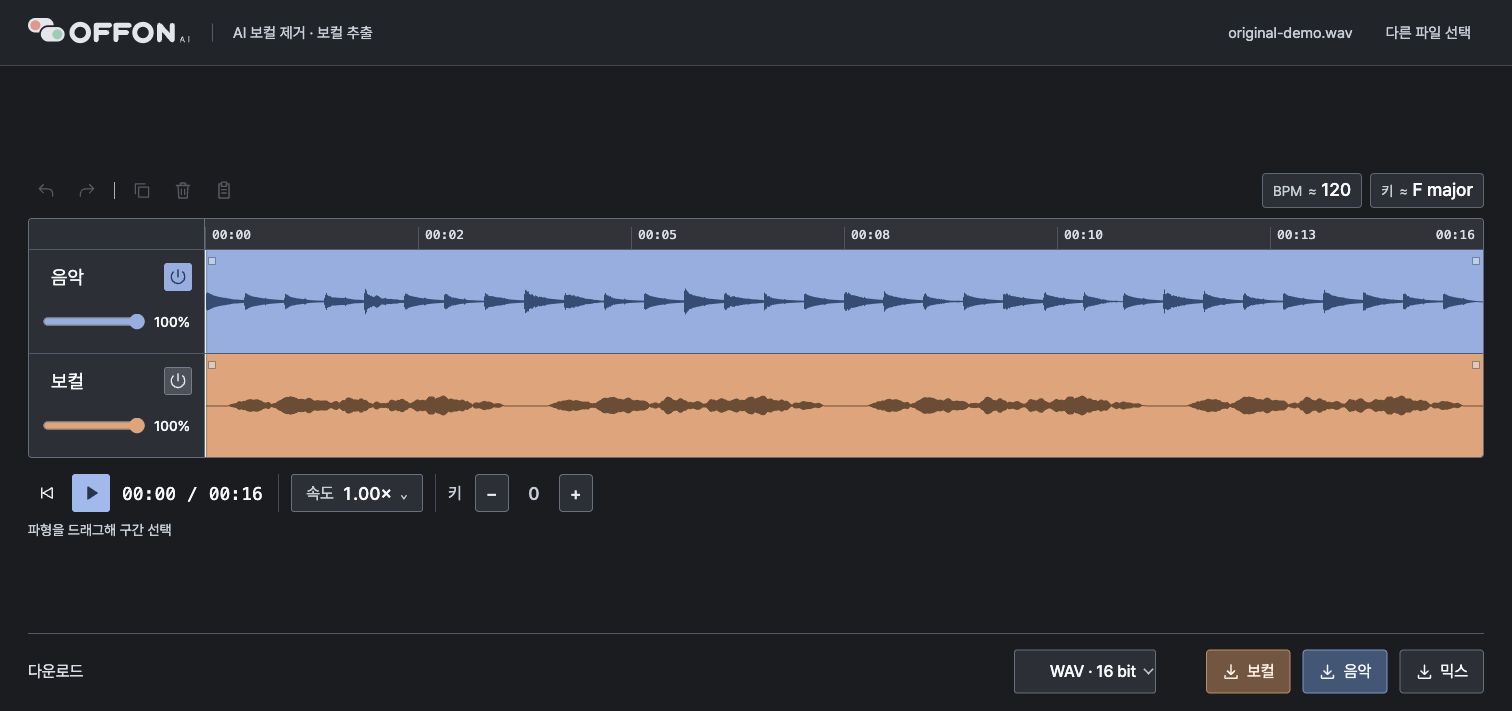
Once AI separation finishes, Music appears above Vocals. Leave Music on, turn off the power button beside Vocals, then use Play or the spacebar to hear the backing track.
- Adjust tempo and key if needed
Use Speed to choose a speed ratio or target BPM, and use − and + under Key to change pitch in semitones. Keep Speed at 1.00× and Key at 0 for the original tempo and pitch.
- Download Music to save the instrumental
Choose MP3, WAV or FLAC in the bottom download bar, then select Music. This saves the separated backing track, including your volume, tempo and key adjustments.
Which track should I download?
- Music: the instrumental with vocals removed, for singing practice or a cover.
- Vocals: the voice extracted from the original audio.
- Mix: the enabled tracks combined at their current volumes. For just the backing track, downloading Music is the simplest option.
Track power buttons control the preview. Music and Vocals downloads each save their own track; Mix combines the enabled tracks.
Adjust your backing track's BPM and key for practice
Use the song BPM finder to check the original tempo estimate, lower the tempo for difficult passages, or change the key to suit your vocal range.
For example, a song at 120 BPM becomes 90 BPM at 0.75× speed. Key −2 lowers pitch by two semitones.
Tempo and pitch can be adjusted separately. Download again after editing to save your new settings.
Free vocal removal, editing and downloads
Separate 2 songs and 10 minutes total per day for free. The allowance resets at midnight in Korea (UTC+9).
Listening, tempo and key adjustment, and MP3, WAV or FLAC downloads are also free. Editing or downloading already separated audio does not use additional allowance.
Making backing tracks for several covers or practice sessions? Pro gives you a larger monthly separation allowance. Compare Free and Pro plans for prices and limits.
Vocal removal and instrumental FAQ
Does this only work with MP3?
No. Upload MP3, WAV, M4A or FLAC and save the results as MP3, WAV or FLAC.
Can I extract just the vocals?
Yes. Mute Music and leave Vocals on to preview the voice. Select Vocals in the download bar to save that track on its own.
Why can I still hear some voice or backing vocals?
Results depend on source quality and arrangement. Reverb, backing vocals and voices overlapping with instruments may remain. Complete removal is not guaranteed for every recording, so preview before downloading.
Can I save the instrumental after changing tempo or key?
Yes. Adjust Speed and Key, then download Music. Leave Key at 0 to change only tempo, or keep Speed at 1.00× to change only pitch.
Can I make a backing track on my phone?
Yes. Upload, remove vocals and download the instrumental in a desktop or mobile web browser without installing an app.